How to Make a Custom Rss Feed With Feedly
3 Easy Ways to Build a Custom RSS Feed
Auto-deliver content by email, Feedly and more!
I recently had to get crafty to make more of my content accessible by email.
It's a way people can get updated with all of my blog posts and podcast episodes, but no other content from my website, in their email inbox.
I love the idea of people getting my insights from different sources in their inbox with a subscription.
Doing an RSS feed for my whole website wasn't a solution because there will be new pages and updates that I don't want to be included (This turned out to be not possible for me, anyway).
So, as any red-blooded Canadian freelancer would, I figured out some workarounds. I'll explain in a bit, but first you need to know what the heck I'm talking about.
What is RSS?
RSS stands for Really Simple Syndication. If you open an RSS page it just looks like a webpage full of scary (XML) code, but don't be scared: no coding is required to create one.
To subscribe to your RSS, all people need is the URL to that page.
When people subscribe to an RSS, every new page or blog post for the website will be sent to those subscribers via whatever tool they're using to subscribe to RSS feeds. Feedly is a popular RSS reader app used for this purpose, so readers can aggregate all their feeds in one place and curate them how they like.
In the digital marketing world, we talk a lot about the power of social media and email newsletters for getting your web pages in front of people, but RSS doesn't get nearly the amount of love it deserves.
Its self-serve nature means people can get the information they want how they want it and where they want it without you, the publisher or marketer, having to send it to them manually.
It's automated distribution and that's a dream for a content creator, am I right?
I started exploring if or how I could pick and choose which content I'd want to go into my website's RSS without having to learn how to code. Sure enough, there is!
A custom RSS!
There's only one problem. It requires access to your website host's FTP folder and I don't have such access with the CMS I use (Duda).
Here are the instructions to create your own RSS feed.
Remember: You can only do this if your host gives you access to your site's FTP folder.
I don't mind because to make my own XML file with all of the content from different site sections and different websites all together, I'd have to enter each page manually into the feed once it's live and that would be a headache.
I'm sure there are ways to automate all this, but I just wanted a solution with an app I already use instead of having to sign up for and learn a new software.
My other obstacle is that the only part of my website that Duda has an RSS URL for is the blog, so the RSS feed would only include pages in my blog, but I've figured out a workaround, which I explain below.
Three Simple Workarounds to Putting Non-Blog Pages into your RSS
Workaround 1: Embedding to your desired pages in the Blog
For example, you could embed certain episodes or even all episodes of your podcast in blog posts. You could also embed Tweets, videos and Reddit threads there.
I probably won't rely on this option because I want to direct people to certain pages for their SEO value.
Embedding can also slow down your site, especially if the code is bloated.
It also might not show up properly in Feedly or another RSS reader.
Workaround 2: Linking to podcasts in blog posts
I may try this one and see how it goes. I'll test hyperlinking podcast titles and also test writing about podcast episodes and inline-hyperlinking phrases.
That one would be nicer to look at and also may have more SEO value.
Workaround 3: Moving my podcast into my blog
This option appeals to me most and it seems the best way for people to be able to find the pages for certain episodes. It would also have the cleanest appearance.
I'd just have to redirect the existing episodes to their new URLs (from /podcast to /blog), which just takes a second in Duda.
Then I'd use the "Recent posts" feature in Duda to automatically have all podcast episodes appear on the "Podcast" page.
To do this I'd just have to put a tag on all existing episode pages and new ones and then tell the widget to automatically pull any blog posts with that tag into the podcast page.
Once I figured out these workarounds, I realized what else I could send to an RSS reader. I could embed my social media posts I'd like people to see, my upcoming Youtube videos and even interactive content like quizzes or surveys.
I plan to write guest posts and guest on more podcasts and I can include all of that in the RSS, too.
Because all of these would be in my blog, I would just need to make sure that the content I put there fits the expectations readers have for the blog and serves my business.
Just because you can include whatever you'd like people to see in your blog/RSS, that doesn't mean you should. So you will need to test this. Sometimes minimal content is better.
How Does RSS Work By Email?
Most people don't use feed readers and a lot of people like to get content via email. That's easy with the MailChimp RSS option.
Wordpress does the same thing when you subscribe to a Wordpress site.
I don't have Wordpress, but that's okay because there are other options to do that.
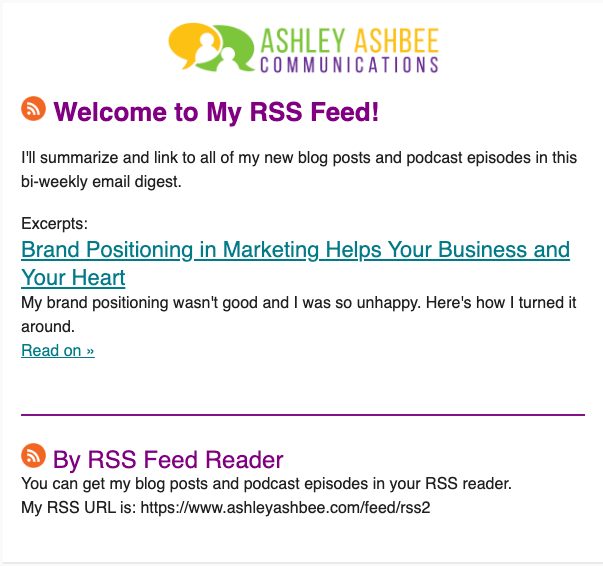
I created an RSS-to-Email campaign in Mailchimp. It's very simple.
With this option, you send new posts in an email digest instead of sending a new email with every new post. This prevents people from getting inundated with your emails and then unsubscribing.
I added my RSS feed URL in case some subscribers want to switch to reading my via their feed reader instead of email.
This is what it looks like. I wanted to provide options here to dissuade people from unsubscribing. I'm sure I'll tweak this based on its performance.
How Can People Sign Up for Your Mailchimp RSS-to-Email Campaign?
There are two ways to do this.
1. Create a sign-up form for only the RSS
This requires you to set the RSS group as a new audience and you can only have one audience in the free plan. I do option 2 instead.
It's easier and more effective to separate with segments instead of creating a different audience for each one, anyway.
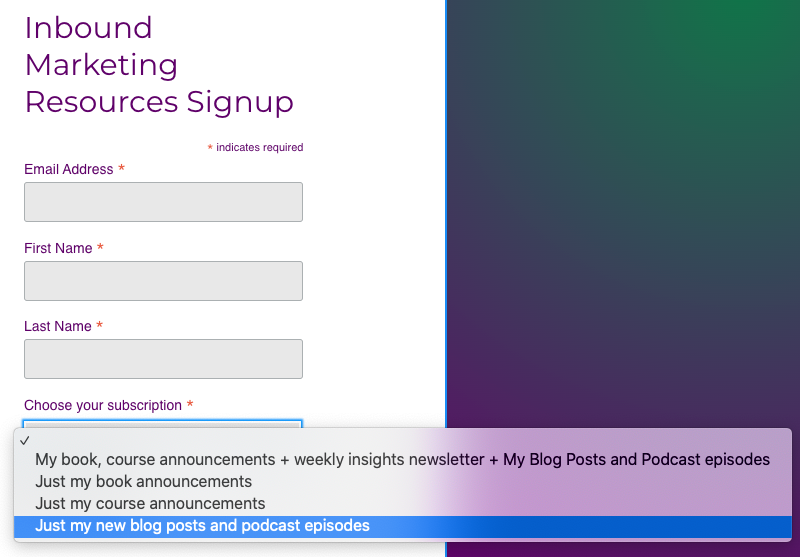
2. Create a drop-down menu of the different subscriptions you offer
Create and apply a tag for only the subscribers who select the option for your RSS content.
Then create a segment and set a rule there to make the menu selection correspond with its associated content.
Then add that as an option in your a drop down-menu in your sign-in form and connect that option to the segment you created.
This is what it looks like:
I'm not saying this is the best option. I've only just launched it on my website and I'll probably test different copy.
Some people may want to create a RSS website instead — meaning the only content there would be things that are set up to go to the RSS feed. That's not a good fit for me, though.
This is a quick way to pool content from different sources and make it available in one subscription. I wanted to set it up and test it with my pre-book-launch activities. I'll let you know how that goes!
Looking for ideas on what content to create? Read my post to below to see how the best ideas for content often come from customer activities and insights.
Source: https://bettermarketing.pub/3-easy-ways-to-build-a-custom-rss-feed-9cbca59500d4
0 Response to "How to Make a Custom Rss Feed With Feedly"
Post a Comment